Download YouTube Videos on iPhone (No App, 2026)
How to download YouTube videos on iPhone with no app: copy the link, save the MP4 in Safari, then move it to your camera roll. 6 steps with real screenshots.
 Simone MatthewContent & video creator at Tube Snip·Updated · 8 min read
Here is how to download YouTube videos on iPhone without installing anything: copy the video link in the YouTube app, paste it into a web downloader in Safari, pick a quality, and save the MP4 to the Files app. One more tap moves it to your camera roll. The whole thing takes about five minutes the first time and under a minute after that.
Most guides for this push a "file manager" app from the App Store. Those apps come and go, they are full of ads, and you do not need one. Safari has had a real download manager since iOS 13, and Files plus Photos do the rest.
I tested every step below on October 17, 2026. The screenshots are from Tube Snip open in Safari at iPhone screen size, so what you see is what you will tap.
Before you start: two ways to watch YouTube offline
There are two very different things people mean by "download". Pick the right one first, because it saves you time.
| YouTube Premium download | MP4 file (this guide) | |
|---|---|---|
| Cost | Paid monthly plan | Free |
| Where it lives | Only inside the YouTube app | Files app and Photos |
| Works in other apps | No | Yes: iMovie, CapCut, AirDrop, WhatsApp |
| Stays forever | Must reconnect at least every 29 days | Yes, until you delete it |
| Best quality | Up to 1080p | Up to 4K, if the upload has it |
| Fine for | Watching on a plane | Editing, sharing, keeping a copy |
If you only want to watch a video on a flight and you already pay for Premium, the Download button under the video is the easy path. YouTube explains the limits in its help page on offline downloads. If you want an actual video file you can edit, send or keep, follow the steps below.
One rule before you download: only save videos you made, videos under a Creative Commons license, or videos the creator lets you use. Tube Snip shows the license of each video right on the result card, so you can check this in one look.
How to download YouTube videos on iPhone, step by step
These six steps work the same on any iPhone that runs iOS 13 or later. The iPad steps are almost identical; the differences are in the next section.
Copy the video link in the YouTube app
Open the YouTube app and find the video. Tap Share under the video, then tap Copy link. The link is now on your clipboard.
For a Short, tap the three dots (⋯) or the Share arrow on the right side of the Short, then Copy link. Shorts links look like youtube.com/shorts/…, and they work the same way.
No app open? You can also copy the link from youtube.com in Safari: tap the address bar and copy what is there.
Paste the link into Tube Snip in Safari
Open Safari and go to the YouTube video downloader. Tap the box at the top and choose Paste. When the box says "Video link detected", tap Fetch video.
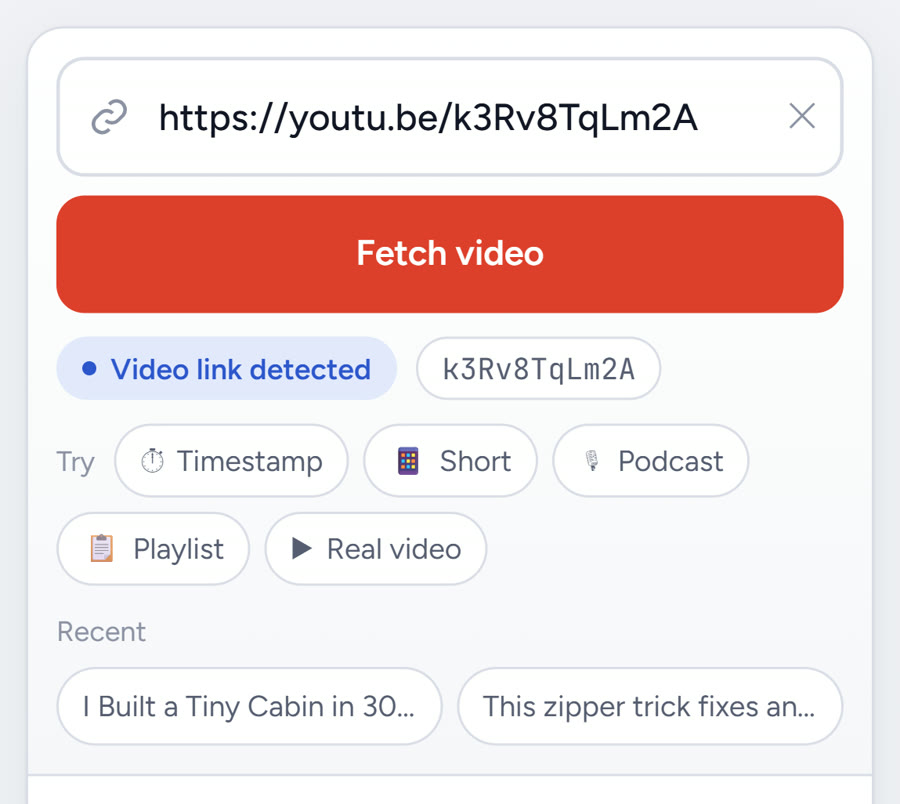
Use Safari for this, not the YouTube app's built-in browser and not Chrome. Safari's download manager is what puts the file in Files. Chrome on iPhone can download too, but it tucks the file into a Chrome folder that is harder to find.
Check that it found the right video
A card appears with the thumbnail, title, channel and length. In my test, the card showed an 18:42 video and its license line: "Standard YouTube license · Ask the creator before you reuse".
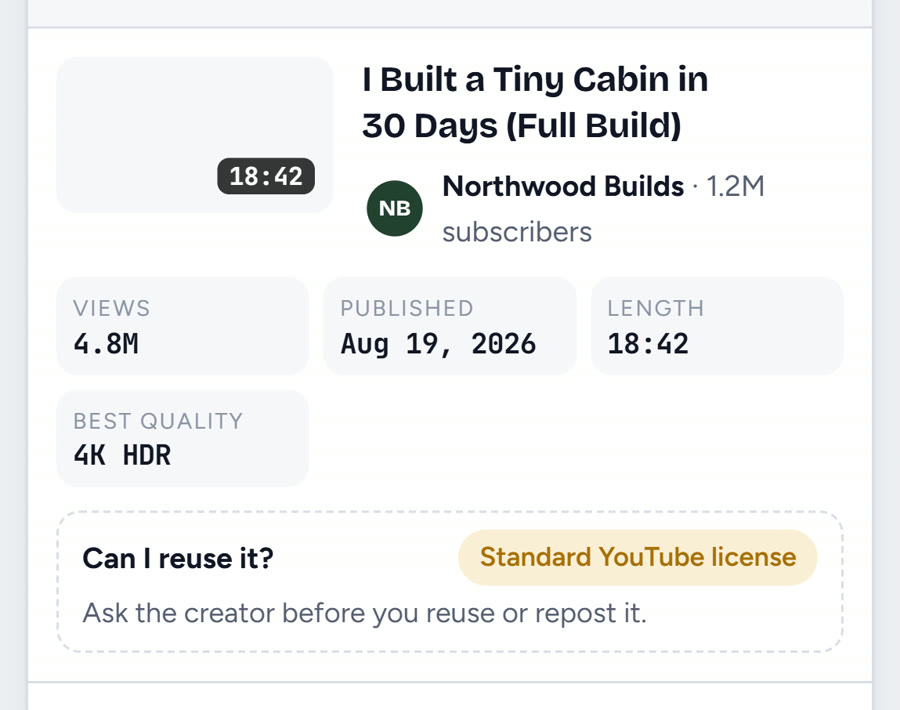
If the title is wrong, you probably copied a playlist or a channel link. Go back to the app and copy the link from the video itself.
Pick MP4 and a quality that fits your storage
Keep MP4 selected. MP4 plays on every iPhone, in Photos, iMovie and every messaging app. WebM is smaller but Photos will not open it.
Then pick a quality. Each row shows the file size before you download, which matters on a phone. For the 18:42 video in my test, the list showed about 270 MB at 720p and about 2.48 GB at 4K.
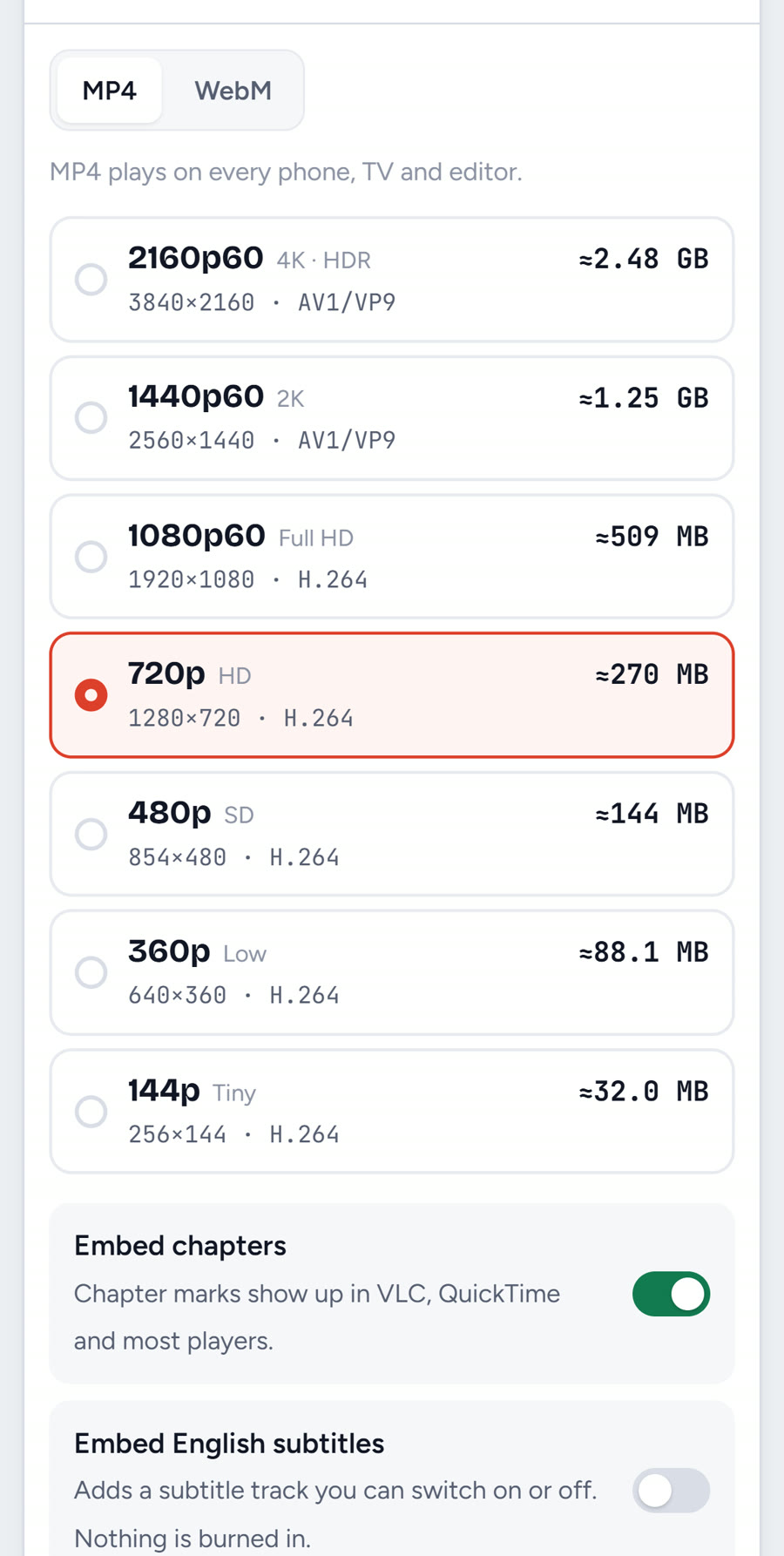
On an iPhone screen, 720p looks sharp and keeps files small. Pick 1080p if you will watch on a TV or edit the video. Pick 4K only if you really need it, because it fills your storage fast.
Two switches sit under the list. Embed chapters keeps the video's chapter marks. Embed English subtitles adds a subtitle track you can turn on or off; nothing is burned into the picture.
Tap Download and let Safari save the file
Tap Download MP4. Safari asks "Do you want to download…?"; tap Download. A Downloads button appears next to the Safari address bar. Tap it to watch progress.
Keep Safari open until the download finishes. If you switch apps for a long time, iOS can pause the download. A 270 MB file takes about a minute on good Wi-Fi.
When it is done, the file is in the Files app under Downloads. That folder is in iCloud Drive by default. You can change it in Settings → Apps → Safari → Downloads (older iOS: Settings → Safari → Downloads) and choose On My iPhone if you do not want it to use iCloud storage. Apple covers this in its Safari downloads help.
Save the video to Photos (camera roll)
This is the step most guides skip. A video in Files will not show up in the Photos app, iMovie or Instagram until you move it.
Open Files → Downloads and tap the video. Tap the Share button (the square with an arrow), then tap Save Video. It now sits in your camera roll under Recents, ready for editing or posting. You can then delete the copy in Files to save space.
That is the whole way to save YouTube videos to the camera roll without an app.
Download YouTube videos on iPad
The same six steps work on iPad with iPadOS 13 or later. Two small differences:
- The Downloads button sits next to the address bar at the top of the screen, and the bigger screen shows the progress list in a pop-over.
- Split View helps. Put YouTube on one side and Safari on the other. Drag the video link from YouTube straight into the Tube Snip box.
On an iPad screen, 1080p is worth the extra space. 720p can look soft on a 13-inch display.
How much space does a YouTube video take on iPhone?
Here is the rough size per minute of video, taken from the sizes shown in my test. Use it to guess before you download a long video.
| Quality | Size per minute | 10-minute video | Good for |
|---|---|---|---|
| 360p | about 5 MB | about 50 MB | Saving data, podcasts with a still picture |
| 480p | about 8 MB | about 80 MB | Small screens, slow Wi-Fi |
| 720p | about 15 MB | about 150 MB | iPhone watching (best balance) |
| 1080p | about 27 MB | about 270 MB | iPad, TV, editing |
| 4K | about 130 MB | about 1.3 GB | Editing on a Mac only |
To check how much free space you have, open Settings → General → iPhone Storage.
Download only the audio (YouTube music on iPhone)
Want a talk, a lecture or a song for the gym? Switch the result card to Audio · MP3 before you tap Download. You get a list of formats with sizes, from MP3 320 kbps down to 128 kbps, plus M4A, which iPhones play natively.
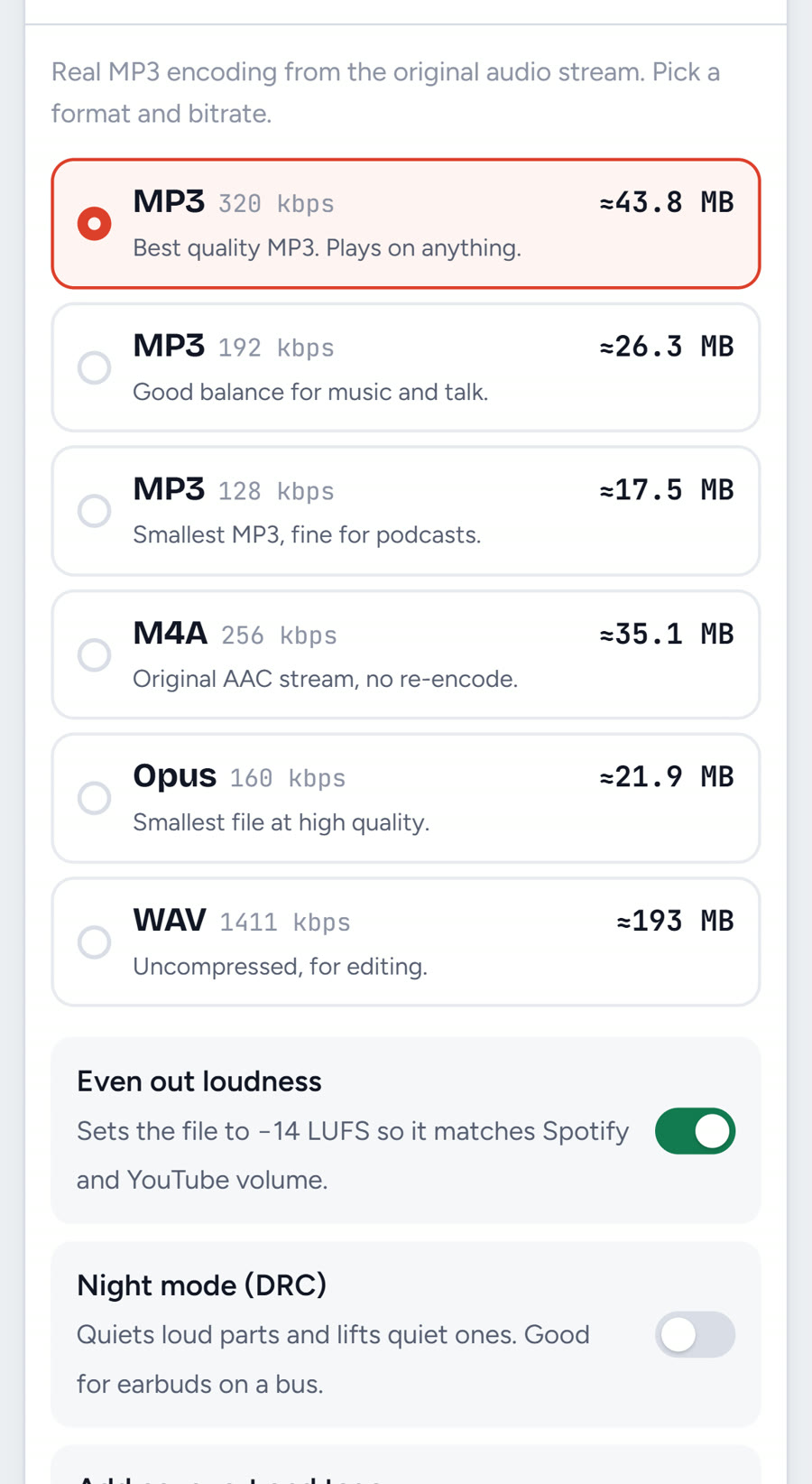
The audio file lands in Files → Downloads too. You can play it right there, or add it to a playlist app. For more about audio quality, see the YouTube to MP3 converter page. Note that Photos does not store audio, so Step 6 does not apply to MP3s.
Download YouTube Shorts and whole playlists
- Shorts: paste a Shorts link in the same box, or use the YouTube Shorts downloader, which keeps the vertical 9:16 frame and the sound.
- Playlists: the playlist downloader lists every video and saves them in one go. On a phone, start with 720p, because a 30-video playlist adds up fast.
- Just one part of a video: cut the moment you need with the YouTube clip cutter instead of saving the full hour.
Why not use a YouTube downloader app?
You will see App Store apps that promise to download YouTube videos. In my experience they share three problems:
- They disappear. Apps that save YouTube videos break YouTube's terms, so they get pulled or stop working, and your saved library can go with them.
- Ads and pop-ups. Many are "file manager" apps with a hidden browser, full-screen ads and paid upgrades.
- No real file. Some keep the video locked inside the app, so you are back to the Premium problem: no Photos, no sharing.
A web tool in Safari avoids all three. There is nothing to install, nothing to update, and the result is a normal MP4 in Files.
Troubleshooting: when the download does not work
| What you see | Why | Fix |
|---|---|---|
| Nothing happens when you tap Download | Safari blocked the pop-up, or you are in the YouTube app's browser | Open the page in Safari itself, then tap Download again |
| The video is not in Photos | Downloads go to Files first | Do Step 6: Files → Downloads → Share → Save Video |
| Photos says the format is not supported | You picked WebM | Download again with MP4 selected |
| Download stops halfway | You left Safari or the phone locked | Keep Safari open, plug in, and use Wi-Fi |
| "Not enough storage" | The quality is too high for your free space | Pick 720p or 480p, or free space in Settings → General → iPhone Storage |
| No downloads folder in Files | Safari saves to iCloud Drive by default | Look in Files → Browse → iCloud Drive → Downloads |
| "Video unavailable" | Private, age-restricted or members-only video | These cannot be saved; try a public video |
| "You reached 20 downloads this hour" | The free hourly limit | Wait for the hour to reset |
Is it legal to download YouTube videos on iPhone?
YouTube's Terms of Service do not allow downloading unless YouTube shows a download link or you have the owner's permission. In practice, this is what is fine and what is not:
- Fine: your own videos, videos under a Creative Commons license, and videos where the creator says you can reuse them.
- Ask first: anything with a Standard YouTube license that you want to repost or edit into your own content.
- Not fine: re-uploading someone else's video, or selling it.
Copyright rules differ by country. If you post clips, give credit and follow each platform's rules.
What I would do
For most people, the best setup is simple. Bookmark the downloader in Safari, set Safari downloads to On My iPhone, and keep 720p as your default. Then any video you are allowed to save is three taps away, and it lands where you can use it.
Last tested October 17, 2026.
Questions
Can I download YouTube videos on iPhone without an app?
Yes. Copy the link in the YouTube app, open a web downloader like Tube Snip in Safari, pick MP4 and tap Download. Safari saves the file to Files → Downloads, and from there you can save it to Photos.
Where do downloaded YouTube videos go on iPhone?
Safari puts them in the Files app, in the Downloads folder (in iCloud Drive unless you changed it). To see the video in Photos, open it in Files, tap Share and then Save Video.
How do I save a YouTube video to my camera roll?
Download it as MP4 in Safari, open Files → Downloads, tap the video, tap Share and choose Save Video. WebM files cannot be saved to Photos, so pick MP4.
Is it free to download YouTube videos on iPhone?
With Tube Snip, yes: free use allows up to 20 downloads an hour, with no account and no app. YouTube Premium downloads cost a monthly fee and only play inside the YouTube app.
What quality should I pick on iPhone?
720p looks sharp on a phone and uses about 15 MB per minute. Choose 1080p for iPad, TV or editing, and 4K only when you really need it.
Can I download YouTube music to my iPhone?
Switch the result card to Audio · MP3 and pick MP3 or M4A. The audio file goes to Files → Downloads, where you can play it. Only save music you own or are allowed to use.
Is it legal to download YouTube videos?
YouTube's terms only allow downloads where YouTube offers a download link or the owner gives permission. Your own videos and Creative Commons videos are fine; ask the creator before reusing anything else.